Help

Quick Start Guides & Full Guides

Everything you need to get going with a VacayBooked.com app, plus the deeper how-to if you want it. No account needed — just pick up where you left off.

Cruise Companion

Quick Start Guide

The short version — get a vacation started in under a minute.
  1. Open Cruise Companion — nothing to install, no account to create.
  2. Tap + New to start a vacation, then set your dates in the Vacation field.
  3. Fill in what you need from the tabs across the top — Cruise, Budget, Flights, Hotels, Transportation, Activities, Dining, Pets & Boarding, Documents.
  4. Everything auto-saves in your browser as you go. Use Save or Save As if you want a copy of the file itself, and Open to load one back in.
  5. Stuck on a screen? The Instructions tab has help specific to that section.
  6. Zero signal needed once it's loaded — everything you entered is still there mid-cruise.

Cruise Companion toolbar with Open, Save, Save as, Vacation dates, and NewOpen / Save / New — auto-saved in your browser as you go

Cruise Companion tab bar and Overview countsTabs across the top, with an at-a-glance Overview
↑ Back to top

Help / Full Guide

The complete walkthrough, plus answers to common questions.

Setting up a vacation

Tap + New to start one, and set your travel dates in the Vacation field at the top. Once it's set up, everything you add — under Cruise, Budget, Flights, Hotels, Transportation, Activities, Dining, Pets & Boarding, and Documents — lives under that vacation, so you can keep multiple trips organized separately if you're planning ahead. Print Vacation gives you a printable copy, and Delete removes one you no longer need.

Getting around the tabs

Overview gives you an at-a-glance count for each section — days, flights, hotels, and so on. From there, each tab (Cruise, Budget, Flights, Hotels, Transportation, Activities, Dining, Pets & Boarding, Documents) holds the details for that part of the trip. The Instructions tab has section-specific help right inside the app, and Support is a direct line if you get stuck.

Working offline

Cruise Companion is built to work with no signal, which matters most once you're actually on the ship. Load the app and your vacation at least once while you still have a connection (before boarding is safest); after that, everything is stored in your browser and available with zero signal.

Your data

There's no account and no cloud sync — your vacation auto-saves in your browser on your device as you go. Use Save or Save As any time you want an actual file — handy for keeping a backup or moving your vacation to another device via Open.

Common questions

  • Do I need to create an account? No — nothing to sign up for.
  • Will it work without WiFi or cell signal? Yes, once you've loaded the app and your vacation details at least once.
  • What if I switch phones or browsers? Use Save/Save As on the old device, then Open that file on the new one.
  • I'm not sure how a section works. Check the Instructions tab first — it covers each section of the app.
  • Something looks wrong or missing? Email Support@VacayBooked.com — it's a solo project, but every message gets read.
↑ Back to top

The Navigator

Carnival Vista Only

This app is built for one ship: the Carnival Vista. The deck plans and wayfinding here are specific to that ship's layout and won't be accurate on any other ship, including other Carnival ships.

Not affiliated with Carnival: VacayBooked.com and The Navigator are not affiliated with, endorsed by, or connected to Carnival Cruise Line in any way. This is an independent tool built by a cruiser, for cruisers — shared in case it's useful to other Carnival Vista passengers. Always follow official signage and crew directions on board.

Quick Start Guide

Find your way around the Carnival Vista in a few taps.
  1. Open The Navigator — works best if you load it once while you still have signal, before boarding.
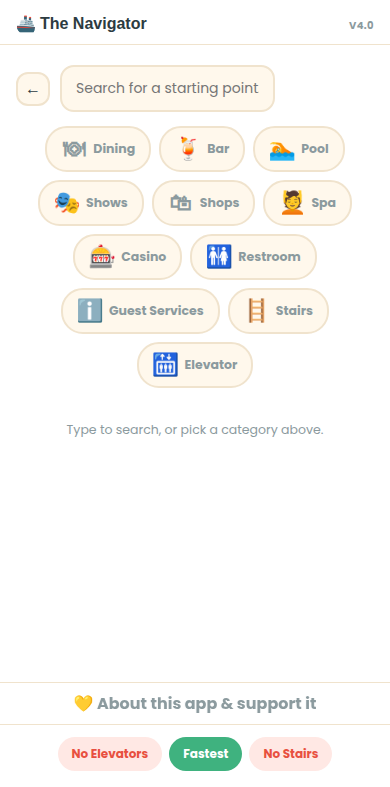
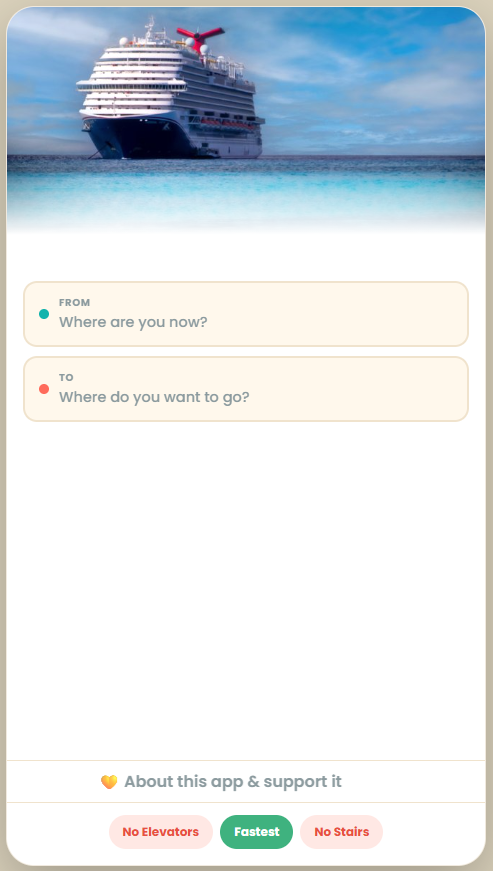
  2. Tap the From field and set where you are now — search by name, or tap a category like Dining, Pool, or Guest Services.
  3. Tap the To field and set where you want to go, the same way.
  4. Pick a routing preference at the bottom — Fastest, No Stairs, or No Elevators.
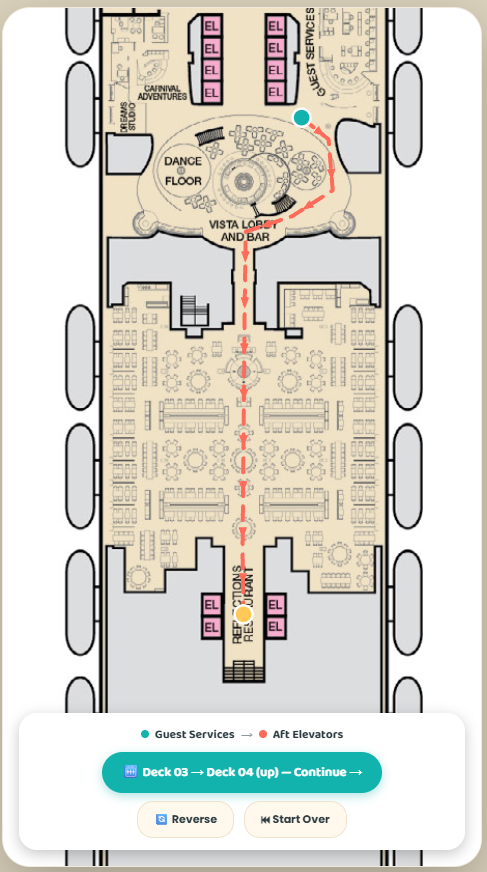
  5. Follow the highlighted path on the deck map. Tap Continue when it's time to move to the next deck.
  6. Starting over or heading back? Use Reverse Route or Start Over.
The Navigator From and To fields with routing preference buttonsSet From / To, then pick Fastest, No Stairs, or No Elevators
The Navigator search and category pickerSearch or tap a category to set a location
The Navigator deck map with a route and Continue buttonFollow the route, tap Continue at each deck change
↑ Back to top

Help / Full Guide

The complete walkthrough for getting around the ship.

Which ship this works on

The Navigator is built specifically for the Carnival Vista's deck layout. It is not a general cruise-ship navigation app — if you're sailing on a different ship, this app won't be accurate for finding your way around.

Setting your starting point and destination

Tap the From field, then the To field, and set each one by searching for a name or tapping a category — Dining, Bar, Pool, Shows, Shops, Spa, Casino, Restroom, Guest Services, Stairs, or Elevator. You can search for specific spots too, not just categories.

Choosing how you get there

Once both fields are set, pick a routing preference: Fastest for the quickest path, No Stairs, or No Elevators — useful if you're avoiding one or the other.

Following the route

Your route appears on the deck map with the path highlighted. When the route crosses to a different deck, tap Continue to move to the next leg. Reverse Route swaps your From and To so you can retrace your steps, and Start Over clears both fields to plan a new route.

Working offline

Like Cruise Companion, The Navigator is built to work with no signal — the deck data is stored on your device once loaded, so it works fine mid-cruise with no WiFi or cell service.

A note on affiliation

VacayBooked.com and The Navigator are independent, unofficial tools. I'm not affiliated with, sponsored by, or endorsed by Carnival Cruise Line — I'm just a cruiser who built this for my own trips on the Vista and decided to share it. Deck information is based on publicly available ship layouts; always defer to official signage and crew instructions on board.

Common questions

  • Does this work on other Carnival ships? No — it's built specifically for the Vista's layout.
  • Do I need signal on board? No, once you've loaded the app before boarding.
  • Can I search instead of tapping a category? Yes — the search field takes both.
  • Something looks off or a location's in the wrong place? Email Support@VacayBooked.com — always appreciated.
↑ Back to top